 This post gets a lot of attention, so I rewrote part of it. It will give you step-by-step instructions to take all your old email (in my case over 10 years worth) and upload it into Gmail. Over the years I have used several different email clients: Pine on Unix, Outlook, Lotus Notes, Yahoo Mail, and Gmail. I am currently pretty comfortable with Gmail and have been using it since it was released. Like many people I am a data pack-rat and have kept all my email files (well, almost all – sadly I discovered a 6 months gap). My vision is to put it all into Gmail so I can leverage the great search and tagging features they provide. So here are the steps.
Overall Strategy – get everything converted and loaded into a local server, then sync it to Google.
Why do it this way? There are many advantages. First, if your just moving 100 to a 1000 messages with no attachments, then you can just skip all this and use the IMAP interface found in Google’s FAQ. That method allows you to “see†you gmail account in outlook (or thunderbird or lotus notes) and then just drag or copy messages from one box to the other. But if your moving more than 1000 messages (or in my case 20,000 messages) with lots of attachments, that will take you days, and you have to sit there are watch it because you can only move about 200 messages at a time. In this method, we consolidate first to a local email server (I’ll show you how to set it up below) running on pc, then let the two accounts (your local one and gmail) sync on their own. Any other way and you are stuck sitting there, dragging and dropping or copying and pasting 200 messages at a time from one folder to another. Second – this keeps all dates in tact. It is really nice to see message you send in 1995 in your Gmail account. Third, once we do this, we can use it as a local backup of our Gmail – just incase the unthinkable happens to Gmail. (I said don’t think of it!)
Ready? Let’s get started
Here is the over all process – you will notice that I installed a email server on my computer called Mercury. This allows us to set up a IMAP and POP account locally that is much faster and will serve as a local backup of all email.

Step 1) First find all your email
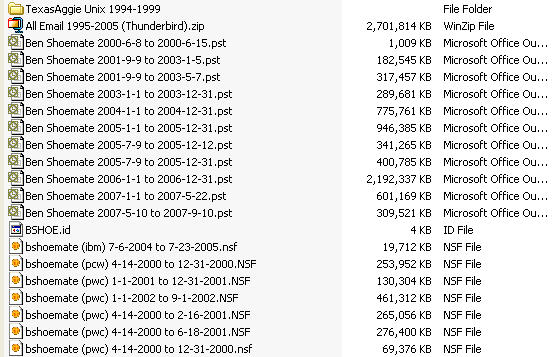
I dug through all my old hard drives and consolidate my mail into one location. As you can see, I have outlook (pst) files, lotus notes (nsf) files and files from an old Unix (pine) account I had at school. The zip file (all 2.7GB of it) is the finished product – all my email from 1995 though 2005 (2006 and 2007 are in gmail already).
If you are looking at my files, you see a lot of overlap, that’s ok, better safe than sorry…we can delete the duplicates once they are in Thunderbird using an extension.
Step 2. Download the Software
- Thunderbird (free email client) – http://www.mozilla.com/en-US/thunderbird/
- Mercury (free email server) – ftp://ftp.usm.maine.edu/pegasus/mercury32/m32-452.exe (read about it)
- Lotus Notes (free trial) – http://www.ibm.com/developerworks/lotus/downloads/
- Outlook (free trial) – http://office.microsoft.com/en-us/outlook/default.aspx
Why Thunderbird – because it is open source with a large developer base. This means there is a good set of tutorials for writing extensions if I to want later on (for those visualizations). Also, I’m making a long term bet that 50 years from now, there will still be tools that import these files – (since they are just text files with no encoding and no database) – plus Thunderbird is really fast and can read 6gb of email quickly (lotus notes and outlook tend to slow down). So Thunderbird will be the final destination on my computer and I will upload from there.
Step 3. Install the software
- Thunderbird – just default everything
- Mercury – Make sure you set it up for both POP and IMAP when you get those options in the wizard
- Lotus Notes – Default
- Outlook – Default
Step 4. Import Unix files to Thunderbird
These are the easiest because Thunderbird will read these natively. All you have to do is copy the files in to the local folder and reopen Thunderbird.
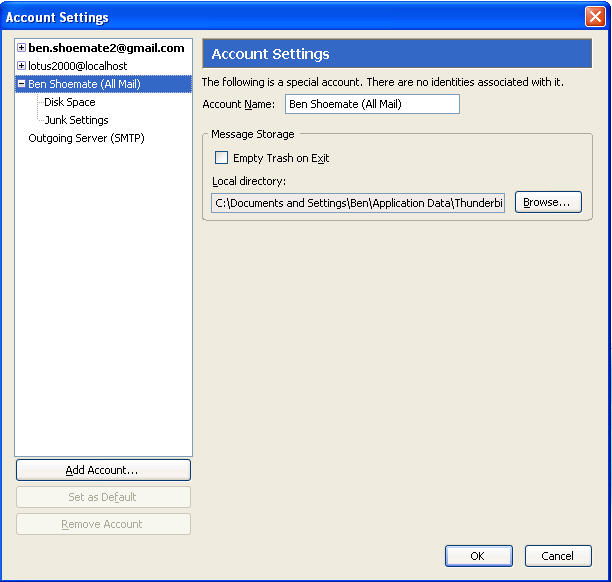
A) Find out where thunderbird is storing your local files. To do this go to Tools > Account Settings. (note I renamed the local account to Ben Shoemate (all mail) but what your interested in is the “Local Directory” copy that and go there in windows explorer. This is where you need to copy the Unix files (they are files with no extensions). Just copy them to this “local folder”, close and restart Thunderbird. Your old mail will be there! That’s it!
Step 5. Set up a local Email account in Mercury.
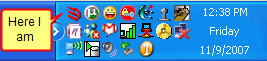
Open Mercury – if it is all ready running you will see down in the windows toolbar by the clock.
Otherwise , Start > Program Files > etc..
Once Mercury is open, go to Configuration > Manage Local Users > Add User
Because there is so much mail, I am going to set up a different local account per year. Gmail.com can import from 5 accounts at a time, and this will save a lot of time later on. So just make up an account name – I use my initials and the year and a simple password.
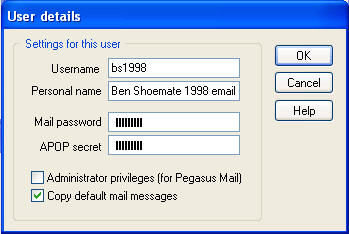
It should look like this when your done.
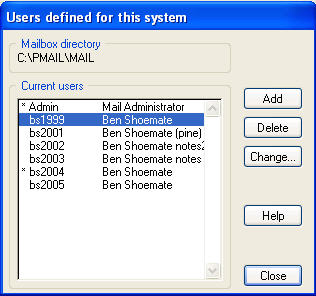
Each of these accounts are real email addresses. When you are local (in lotus notes and outlook) you can map to them with bs1999@localhost
In gmail, you can add them as bs1999@youripaddress (i.e. bs1999@111.111.122.11).
Step 6. Lotus Notes NSF files to your local email with IMAP
Once lotus notes is installed, you can simply double click the nsf files to open them, or you can click File > Database > Open > browse
You should see your old mail now. Ahh the memories….But don’t stop to read everything again or I’ll never finish this tutorial! Now, in lotus notes we are going to map to the local email account you set up in mercury. (Note: Gmail now has IMAP so you could just map directly to gmail if you want using the same procedure – but again, it will take a 100 years if you have this much email).
Go to File > Preferences > Client Reconfiguration Wizard
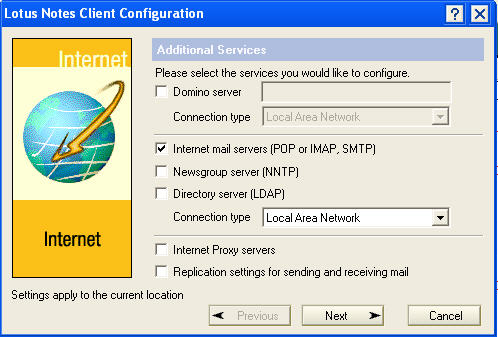
Check Pop or IMAP and click next.
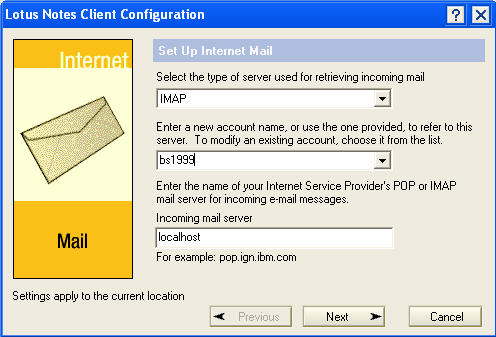
Select IMAP, enter your new email account you set up in mercury, and type localhost, click next.
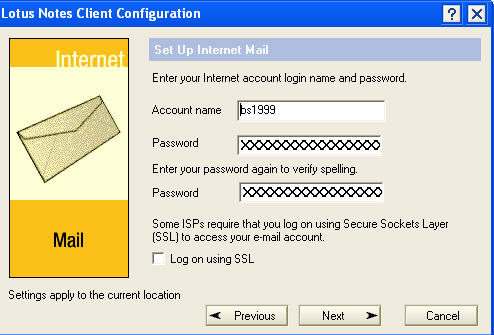
enter your account name again, and enter the password you gave yourself.
Click next, enter localhost as the server and your email address again – this doesn’t matter since you will not be using this email address for very long and it won’t show up on any of the mail that goes through it.
next, next, next your done.
To open the view of this in notes, click the “Databases” icon on the left panel and open your new account (this might take 2-3 minutes while notes creates a new nsf file etc.)
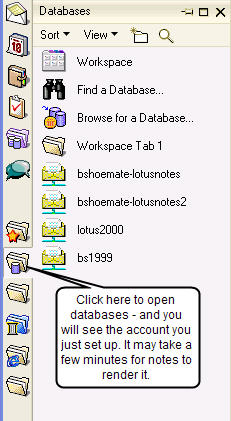
Now you should have you local account open. Now simply open the old nsf file, go to the “all documents” folder, select all, copy (I think it will only let you copy 2500 at a time) and then switch to you new email account and paste. Once you have all the messages for that year in the local IMAP account, close the nsf and repeat for all nsf files, and all years.
Step 7 – Outlook to your local email with IMAP
The same as in lotus notes – open your pst, then add the imap account and copy and paste.
- To open the pst go to File > Manage Data files and click Add.
- To open the local IMAP account go to Tools > Account Settings > New email account
Check the box that says “Manually configure server settings”.
- Select Internet Mail
- Enter your Name, Email address (bs1999@localhost) and password, select IMAP, the server is localhost for both incoming and outgoing
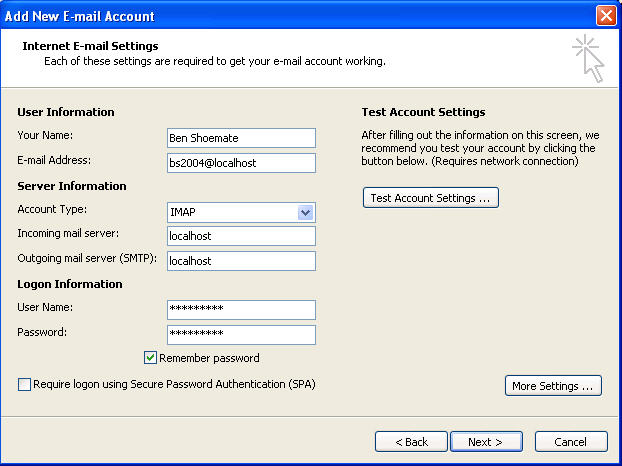
Once you have mapped to this account, simply copy your old mail from the PST to the new account.
Step 8 – Clean it up in Thunderbird
Connect Thunderbird to you local email server (mercury) and download all your mail. Just like in outlook and lotus notes, we are going to add an account to Thunderbird and let it download all the mail you just put into it from lotus notes, pine and outlook.
- Open Thunderbird
- Click Tools > Account Settings > Add Account
- Enter Account Name (for me its bs1999@localhost), Name, email address (bs1999@localhost)
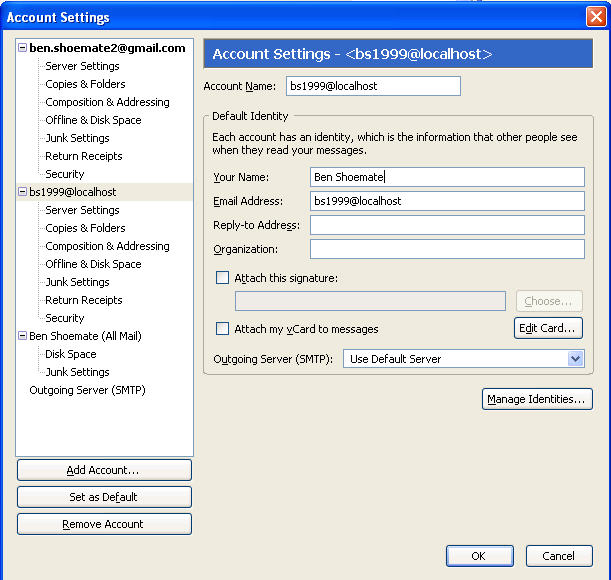
- Click Server settings
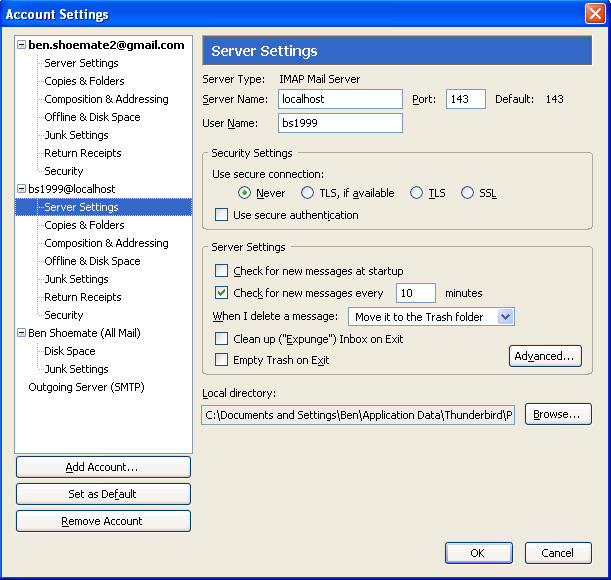
- Click OK.
- The next thing I did was organize copy them down into my local Thunderbird account and used an extension to delete duplicates
- Then I spent some time looking for gaps…oh well
Step 9 – Upload to gmail
By now your local account has a lot of mail. Let’s start pulling it into gmail. I set up a new gmail account to test it first. From there I can pull it into my main account.
- Log in to gmail
- Click Settings > Accounts > Get Mail from other accounts (Pop3) > Add other accounts
- Add your accounts from your local account. Note: you need you IP address. If you have a router you will need to route ports for pop3 (port 110) to your local computer. Log into your router to do this. While your there, get the IP of your router (ITS NOT the one that starts with 192. or 10. those are always local addresses)
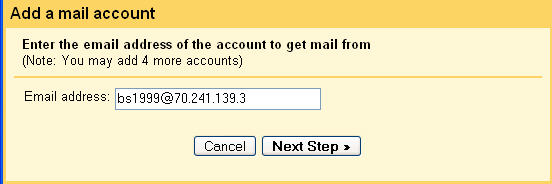
(that’s NOT my IP address btw)
Next – gmail gives you some great options to tag the mail as it comes in, do it. Even if your not a tagger – do it.
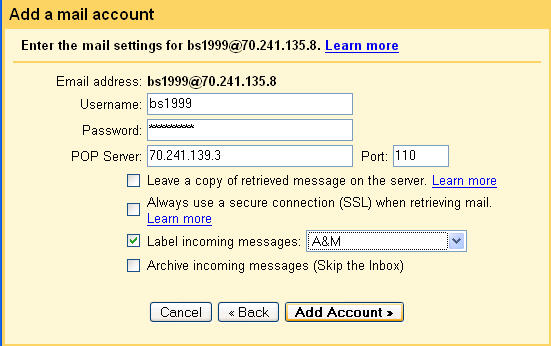
You might also want to leave the message on the server (your computer) if this is a trial run.
Click Add account. If you get a problem, make sure your firewall is open, you port is mapped, and your password is right.
Next I’ll show you how to upload all those old chats…
If you liked this post, check out my other greatest hits:

soma 250mg…
soma overnight fed ex…
cialis generic viagra…
can a woman take viagra pfizer…
soma uk…
soma uk…
casino sports betting…
casino sports betting…
cashable no deposit bonus no minimum deposit…
play casino tropez…
interpoker no deposit…
casino on net…
viagra no prescription no fees overnigh…
viagra vs viagra soft…
viagra theme song…
viagra pharmacy online…
casino online free bonus…
online casino ohne software…
free slot play with bonuses rounds no downloads…
new free play casino game…
cheapest soma online…
mail order soma uk…
cheapest prices for tramadol…
tramadol 200mg in the us…
ropivacaine tramadol…
tramadol online pharmacy…
foxwoods coupon…
online casino slot uk…
super jackpot party play online…
all no deposit new casino bonus…
itching with tramadol…
tramadol hydrocodone taken together…
valtrex 1 gm caplet…
valtrex and liver damage…
foxwoods free online games…
play for fun slots…
buy 200 mg tramadol…
order tramadol eu…
buy valtrex no prescription…
valtrex and kidney problems…
free fulltilt poker noline nodownlaod noregistration…
casino online con bonus di benvenuto…
online casino umsatz…
free nodownload vidio slots and poker games…
cirrus casino july 2010 free chip code…
casino no deposit forum coupons…
new rtg casino no deposit bonus codes…
casino online per mac…
oral herpes drugs…
oral herpes drugs…
nodepositcasino codes blog…
free sighn up bonus…
grand casino employment…
10$ free non deposit poker bonus…
somas no prescription pay cod…
soma no rx overnight…
valtrex herpes prophylaxis…
valtrex dosage for shingles…
casino en ligne poker…
newest no deposit slot bonus codes for july 2010…
valtrex website…
valtrex night sweats…
bingo minimum deposit…
get $10 free with no deposit to bet sports games for signing up…
instant no deposit hampton casino codes…
free casino slot bonus…
free best casino downlods…
free cool cat non deposit chipsd…
is there a computer slot game that has super jackpot party on it…
georgia indian casinos…
online casino test auszahlung…
poker bonus money instant no depoist…
lyrical and tramadol contraindications…
all about tramadol overdose…
Ya, localhost or 127.0.0.1 or your LAN-IP should work as well.
This is actually a very good idea of getting tousands of emails to google. However, i stuck at the last part: I have connected gmail to the mercury server to get the emails using pop3 but google keeps saying: no mails have been transfered, which is weird. It seams to me that something is messed up in mercury using pop3 because IMAP is working using outlook.
Any help?
Thanks
viagra and diabetes…
buy female viagra…
I get the inbox repair box and it is asking me to enter the name of file i want to scan, this is were I am stuck what to i put in here?
is anyone still reading this thread? I am trying to get my moms email folders into gmail. She has thousands of email all sorted into folders and sub folders. ugh.
thanks for any help
I’m still reading it 🙂 The method above still works. let me know if you have any specific questions.
Hi Ben – I am preparing to move approximately 10 years on emails from Outlook 2007 into Gmail. The messages are to approximately 15 different email addresses and are organized in numerous folders and subfolders in the Inbox. Can you recommend an easy way to move all of the emails directly from Outlook 2007 into Gmail with the time stamps and folders maintained? Thanks inj advance for your reply.
I have emails all the way back to 1996 in gmail today using the method in this post. I tested it again a few months ago and it still worked. In a nutshell:
Set up local email server
IMAP from outlook to local
In outlook, Drag all those emails over to the IMAP local drive
Go to gmail and tell it to connect to the local drive
There are a lot of things that can go wrong in the above steps, mostly firewalls and such, but it works.
Ben Shoemate
Enterprise Web User Experience
Office: +1 (713) 893 8555
Mobile: +1 (214) 417 6319
Email: ben.shoemate@base22.com
Skype: ben.shoemate
CONFIDENTIALITY NOTICE: This e-mail message, including any attachments, is for the sole use of the intended recipient(s) and may contain confidential and privileged information. Any unauthorized review, use, disclosure or distribution is prohibited. If you are not the intended recipient, please contact the sender by reply e-mail and destroy all copies of the original message. In other words, be nice.
(unknown sender) one problem that you will see going from Outlook from an older exchange server set up is that there will be (unknown sender) all over the place. The reason is:
http://www.google.com/support/forum/p/gmail/thread?tid=30b8b45b0d13e15d&hl=en
if you look at the headers for gmail, it only looks at one field. Clients like Outlook/thunderbird will decode multiple places Sent from, Sender, Return Path, From, etc… Gmail web will not do that. it will just show (unknown sender), but you will be able to search.
Hi Ben
Thank you for this post. I have just finished uploading my 15.000 mails to my gmail account as you have described it. I have done it in 4 seperate folders. The last one has just finished uploading 10 minutes before… But I have a question. When I select all mails in that specific folder in thunderbird, I see that it contains exactly 10324 mails, however I just see 10090 mails in gmail now.
1 – I am certainly sure that the process is over.
2 – My router IP never changed. It is exactly the same number now when it was at the beginning.
3 – all of the mails are tagged so it is impossible for them to be under another tag
4 – I checked spam tag during the process, and transferred such unlucy ones back to where they belong
5 – the thredded view option of gmail is off, so I see the real number of mails.
The folder before this one was also problematic. However in that case I had a couple hundred MORE emails than expected! So it was not problematic at all. :)Â What may be the problem do you think? Or is there a problem?
Thank you.
eb
I also saw this problem from really old messages that were corrupt of mal-formed. They we’re either missing a date, or orginally they were internal mail without a valid email address or some other strange data that corrupted it, or double check the following
– Spam folder – double check – I had some that went into spam locally and in gmail
– Consolidated into conversations: remember – gmail counts replies and replies to replies as one conversation thread – you said you had this turned off but double check
– Marked as read – Gmail only shows items that are unread
– The count is just wrong. Do a manual count (I had to do this also) – set it to show 100 items per page, go to the last page and count how many are on that page (if your on page 104 and see 24 email then you have all 10324)
– Check the count locally.
– Check your logs in Mercury.
That’s all I can think of…let me know what you determine the problem is.
*
*
Hi Ben,
No spam
No thredded view
No read-unread issue
No wrong count
I have already got rid of mercury. can’t check logs.
however here is a more interesting thing…
One of the mail accounts that I was transferring to gmail was a Yahoo small business account. (And this folder was the problematic one I wrote about above) I yesterday have learned that I really don’t need your post to transfer those mails to my gmail account. So yesterday, I have just set up pop3 for that and waited till it downloads all mails for me. I was expecting 10324 mails to be transferred. However it did not do that. I think there is a script in gmail that doesn’t let identical mails to be downloaded 2 times. So althoug it claims to have downloaded 10324 mails only 645 was downloaded. This is strange huh? (I was expecting only the missing ones to be downloaded, I mean 234 mails) I randomly checked mails if they exist in gmail and they do. And those 645 late comers? I really don’t know why they weren’t there the first time.
Things get complicated now. But I’m done with this, because I have now 411 extra mails! 🙂 better more than lacking huh?
Thank you for your support. I wish I could be helpful for you to improve this post by solving the issue but I can’t, and I won’t try any further.
Take care.
eb
you are a life saver!
hi.thanks for hte tutorial but i’m having following problems:
-can’t download mercury email server
– have installed thunderbird, but whtn i go to Tools-? Accunt Settings, the windows that opens is quite different then yours. It opens a window which says “Outgoing Server (SMTP) Settings and not the one which is shown in your tut.
Please help 🙂
Try this link to download mercury – http://www.pmail.com/downloads.htm The screens for Thunderbird might have changed – here is the help for setting up thunderbird to ANY email server (including Mercury – the one you will install locally on you PC)
thanks ben, will try it. i don’t find any link to thunderbird new screens. pls could u help me out here.
regards
Hey Ben,
Thank you for a great tutorial! I have one problem:
I have moved my old e-mails (11GB+) to Thunderbird (first into local folders), set up a few accounts Mercury, added those to Thunderbird and moved all the mails to the inboxes of the Mercury accounts.
Now when Gmail connects to Mercury it seems to work but disconnects after two seconds (according to the Mercury log) and fetches no e-mails.
Do you have any idea why this happens? It is almost as if Gmail thinks there are no messages on these accounts. (But when checking in Thunderbird there are thousands in each inbox.)
I’ve read through the comments on your post and’ve tried creating yet another account in Mercury, added it to Gmail while empty and then moved messages into that accounts inbox but Gmail still doesn’t fetch any mails.
Any help would be much appreciated! Best regards,
– Jonas
Make sure they are in the main inbox of the user. you will have to move them where gmail will look. Try it with a few to see if gmail will take them – drag them to main inbox, mark them as unread, I forget exactly. But gmail is thinking of this as another mailbox. Also check gmail settings to see if there is a “get all old mail” option.
Thanks for your reply! I did put them in the inbox, and they were all unread. Gmail logged in but left two seconds later without fetching them unfortunatley.
Right now I’m trying the go-via-gmx-solution advised in one of the comments – seems to work just fine but I really liked your approach to it and would’ve liked to get it to work.
Hello,
I am not sure if someone will still react to this post.
From all the posts, it seems that Gmail won’t take the folder over. Could someone confirm this?
I have thousands of mails in Outlook. They are in several folders. So, not all the mais are in the inbox. I understand all the part to get the mails in the Mercury IMAP account.
My point is, since Google use POP3 how can he retrive the mails trhat are in folders?
Thanks in advance for any response.
The point of this approach is that you are creating a local email “server” on you computer. Gmail will retreive the email from it, just like it would from any other account. In gmail settings you can see the configuration to pull from a pop3 or imap account. Â Once your sure your computer is accessable to the internet – gmail can do it.
Ben,
Thanks a lot for that method, it enabled me to import my precious emails from my last work.
Starbetrayer
Just want to say how thankful I am to your post! Just migrated over 15000 emails over 3 days. I am more ready for the email migration than my colleagues who are force to just convert their old email from lotus to PST and access it on outlook and also access Google Apps with Outlook. ACCESSÂ GOOGLE APPS WITH OUTLOOK!?!?!?!?!?!? Glad I do not have to do that. Really really a very big thank you!
Hey! It worked OK for me! Thanks!
–Joel Pérez.
[…]  The closest path was from this 2007 post. Eventually I did something similar, with a few modifications. Here are the updated steps to […]
I can’t see any of the pictures in your post. I cannot seem to set up the imap between mercury and notes. Have previously set up notes imap to gmail and seen the speed issues and timing out. So want to use mercury as you suggest then thunderbird. However, cannot get the three to see each other. Can you specifically note the field contents I should use in case this is in jpegs that I cannot see? Thanks
Thank you! This guide helped me a lot!
Hi Ben, I don’t have a IT background, but can follow instructions pretty well. I am stuck at the last stage where I have to configure Gmail for POP3. The problem is I don’t know how to configure my router (a d-link one). Instructions on the web for my router don’t match the settings on mine. I thought the port forwarding page on my router’s page would be the one, but it did not work (for the host ip address i used the external router IP as returned by some free websites). On gmail too I used the email id suffixed by @external IP address….Please help…I am afraid I will run out of time with Mercury’s free trial and Lotus Notes’ too…