A “Thanks for your order” message with authenticity

April 2, 2009 by Ben Shoemate · Comments 

The Saddleback Leather Company is the real deal. It has something the rest of the world is now trying to recreate after a century of washing it away with bureaucratic, six sigma, dehumanization – authenticity.   The problem most large organizations will have with being authentic this is identifying exactly WHO is thankful. Think about it – the first line of customer interaction at your company is probably more authentically happy when the phone STOPS ringing and they can take a break. This means of coarse that you are going to have to hire someone (ahemmm) to help you find your voice.

Study this email. I don’t recommend you copy his style (which is reminiscent of overindulgent catalog king J. Peterman on “Seinfeld”) but rather think about how honest-to-goodness thankfulness, and transparency can be incorporated into your business, regardless of its size.

Hello there Ben Shoemate

Just wanted to let you know that I sent your bag out just a little bit ago. Your tracking number is listed below along with a link to the shipping company so you can track your leather piece every couple of hours.  To care for your leather piece and read about the photo contest please see the Questions page on the website. I have all sorts of tips to keep your leather in top shape.

Oh, and by the way, I didn’t want to tell you this before you joined, but 10% of the gross amount that you gave to Saddleback went directly to one of those aid organizations on the Dave’s Links page.  If you spent $500 + $20 for shipping then $52 went out to love people.  Basically, you just contributed to drilling a well for an entire village or partially sponsored a 5 year old street kid in Rwanda to get into a loving orphanage and go to one of the best schools in the country. This is the main reason Saddleback Leather exists. Just wanted to let you know… between friends. Thanks for helping.

The way I see it, out of the thousands and thousands of companies in the world, on the Internet or down on the corner selling leather goods, you chose mine and I really do feel honored.  You are very much appreciated.. Welcome to the family.

Thank you and have a great week.

Warm regards,

Dave Munson
Presidente
Saddleback Leather Co

Your order number is SBL-*********.

The tracking numbers are:
******************************
You can track your package by visiting the links below:
http://wwwapps.ups.com/WebTracking/processInputRequest?TypeOfInquiryNumber=T&InquiryNumber1=xxxxxxxxxxxxxxxx

The following items have been shipped to you:
line items
———————————————————————–
Small Wallet Light Tobacco Brown (WA-SM-LTB)
quantity: 1
total price: $28.00
———————————————————————–
subtotal:                        $28.00
sales tax:                        $2.28
standard shipping: *             $12.98
*shipping total includes handling and insurance fees
=======================================================================
grand total:                     $43.26
———————————————————————–

This order will be billed to:

Ben Shoemate
************
———————————————————————–

Orders for merchandise ship UPS and will receive a confirmation email and tracking number when your UPS order has shipped.
Orders for gift cards only ship via USPS mail with Delivery Confirmation and usually arrive in 3 to 5 business days.

This is an automatically generated email

Even down to letting you know this email was generated automatically – the message is honest and personal. Well done Dave.

Google the redeemer! Thanks be to Google.

March 7, 2008 by Ben Shoemate · Comments 


Google giveth, then Google taketh away. And then, Google giveth back again. Just as in the biblical story of Job, Google looked out across its user base and spoketh undo one who is a tempter, smiling and saying “lookth ye at my user base, how upright and righteous are they. Consider my user bshoemate.”

“Ha!” sayeth the tempter, “Take away his adsense account and he will curse and defame you!” And so Google did, accusing him of click fraud although he had done none. And in his confusion and despair he looked upon the face of Google and appealleth saying – “Why have you forsaken me?” But Google made no reply…

Long bshoemate suffered. And in darkness and despair, he looked at Yahoo, but that strange portal offered no comfort. He looked to MSN but found no solace there. He traveled to the mighty Amazon, but path was not straight, the language unclear, and lost he became.

But then, an email. “Could it be! Cahloo Cahla” he cotorted in his joy and he read the email subject aloud from his open window to the streets below: “[#249567499] Google AdSense Account Reinstated!” Sweet, sweet justice he thought.

So where are the fabled ads of yore? Has he not yet put the code back on his site? Surely he must have only commented it out. “Nah, I’m in no hurry” he said, and wiser and a wearier man he rose the morrow morn.

Use Gmail to find out who sold your email address

December 27, 2007 by Ben Shoemate · Comments 

Google lets you put a + sign in you email address that it ignores but you can use to create filters. For example, when you create an account at buy.com, just I just tell them my email address is  BenShoemate+buy.com@gmail.com. If I start getting ads for “V I A GR A” I know who to boycott, report, complain, filter. Cool.

Also, gmail ignores the . in your name. So even if you signed up for FirstLast@gmail.com you can tell people at work its First.Last@gmail.com and set up a filter to auto tag those as work. Also cool.

How to upload and archive all old Chats from Yahoo IM, AOL, and others into Gmail

November 29, 2007 by Ben Shoemate · Comments 

uploadchats I love how Gmail stores all your chats and makes them available for search. But what about all the chats from before? – I have 10 years of IM’s saved – ICQ, Yahoo IM, AOL IM, Jabber, etc.  My goal is to get them all uploaded into GMail. Here is how I did it.

The first thing you need to know is that in GMail, your chats are actually stored as normal emails with a tag "Chat". So all we need to do is convert the chats to email, upload them and tag them as "chat".  Below are the 5 steps to get them uploaded!

Read more

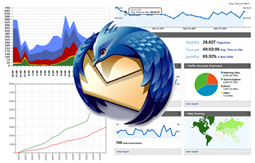
7 Email Visualizations for Thunderbird

November 13, 2007 by Ben Shoemate · Comments 

Now that I have all my old email in one place, my next project will be to create some visualizations to start analyzing it. What do I mean? I’m talking about graphs, charts, tables, heatmaps, grids, networks, etc that illustrate patterns in the email. For example – I have roughly 40,000 emails (closer to 20,000 or so were sent by an actual human, and fewer still were sent only to me – but I don’t know for sure and thats part of the problem). My goal is to have a set of Thunderbird plug ins that will allow me see patterns like these. These are 7 visualizations I think Thunderbird (or Gmail) needs. If I get a lot of interest, I might actually build them so let me know what you think in the comments (no registration needed but I do moderate so it might not show up right away). Read more

How to upload all your old archived Email to Gmail from outlook, lotus notes, and Unix (pine)

November 9, 2007 by Ben Shoemate · Comments 

one-client2 This post gets a lot of attention, so I rewrote part of it. It will give you step-by-step instructions to take all your old email (in my case over 10 years worth) and upload it into Gmail. Over the years I have used several different email clients: Pine on Unix, Outlook, Lotus Notes, Yahoo Mail, and Gmail. I am currently pretty comfortable with Gmail and have been using it since it was released. Like many people I am a data pack-rat and have kept all my email files (well, almost all – sadly I discovered a 6 months gap). My vision is to put it all into Gmail so I can leverage the great search and tagging features they provide. So here are the steps.

Overall Strategy – get everything converted and loaded into a local server, then sync it to Google.

Why do it this way? There are many advantages. First, if your just moving 100 to a 1000 messages with no attachments, then you can just skip all this and use the IMAP interface found in Google’s FAQ. That method allows you to “see” you gmail account in outlook (or thunderbird or lotus notes) and then just drag or copy messages from one box to the other.  But if your moving more than 1000 messages (or in my case 20,000 messages) with lots of attachments, that will take you days, and you have to sit there are watch it because you can only move about 200 messages at a time. In this method, we consolidate first to a local email server (I’ll show you how to set it up below) running on pc, then let the two accounts (your local one and gmail) sync on their own. Any other way and you are stuck sitting there, dragging and dropping or copying and pasting 200 messages at a time from one folder to another. Second – this keeps all dates in tact. It is really nice to see message you send in 1995 in your Gmail account. Third, once we do this, we can use it as a local backup of our Gmail – just incase the unthinkable happens to Gmail. (I said don’t think of it!)

Ready? Let’s get started

Here is the over all process – you will notice that I installed a email server on my computer called Mercury. This allows us to set up a IMAP and POP account locally that is much faster and will serve as a local backup of all email. 

overall-process

Step 1) First find all your email

I dug through all my old hard drives and consolidate my mail into one location. As you can see, I have outlook (pst) files, lotus notes (nsf) files and files from an old Unix (pine) account I had at school. The zip file (all 2.7GB of it) is the finished product – all my email from 1995 though 2005 (2006 and 2007 are in gmail already).

 
If you are looking at my files, you see a lot of overlap, that’s ok, better safe than sorry…we can delete the duplicates once they are in Thunderbird using an extension.

Step 2. Download the Software

Why Thunderbird – because it is open source with a large developer base. This means there is a good set of tutorials for writing extensions if I to want later on (for those visualizations). Also, I’m making a long term bet that 50 years from now, there will still be tools that import these files – (since they are just text files with no encoding and no database) – plus Thunderbird is really fast and can read 6gb of email quickly (lotus notes and outlook tend to slow down). So Thunderbird will be the final destination on my computer and I will upload from there.

Step 3. Install the software

  • Thunderbird – just default everything
  • Mercury – Make sure you set it up for both POP and IMAP when you get those options in the wizard
  • Lotus Notes – Default
  • Outlook – Default

Step 4. Import Unix files to Thunderbird

These are the easiest because Thunderbird will read these natively. All you have to do is copy the files in to the local folder and reopen Thunderbird.
A) Find out where thunderbird is storing your local files. To do this go to Tools > Account Settings. (note I renamed the local account to Ben Shoemate (all mail) but what your interested in is the "Local Directory" copy that and go there in windows explorer. This is where you need to copy the Unix files (they are files with no extensions). Just copy them to this "local folder", close and restart Thunderbird. Your old mail will be there! That’s it!

Step 5. Set up a local Email account in Mercury.

Open Mercury – if it is all ready running you will see down in the windows toolbar by the clock.

Otherwise , Start > Program Files > etc..

Once Mercury is open, go to Configuration > Manage Local Users > Add User
Because there is so much mail, I am going to set up a different local account per year. Gmail.com can import from 5 accounts at a time, and this will save a lot of time later on. So just make up an account name – I use my initials and the year and a simple password.

It should look like this when your done.

Each of these accounts are real email addresses. When you are local (in lotus notes and outlook) you can map to them with bs1999@localhost
In gmail, you can add them as bs1999@youripaddress (i.e. bs1999@111.111.122.11).


Step 6. Lotus Notes NSF files to your local email with IMAP

Once lotus notes is installed, you can simply double click the nsf files to open them, or you can click File > Database > Open > browse

You should see your old mail now. Ahh the memories….But don’t stop to read everything again or I’ll never finish this tutorial! Now, in lotus notes we are going to map to the local email account you set up in mercury. (Note: Gmail now has IMAP so you could just map directly to gmail if you want using the same procedure – but again, it will take a 100 years if you have this much email).

Go to File > Preferences > Client Reconfiguration Wizard

Check Pop or IMAP and click next.

Select IMAP, enter your new email account you set up in mercury, and type localhost, click next.

enter your account name again, and enter the password you gave yourself.
Click next, enter localhost as the server and your email address again – this doesn’t matter since you will not be using this email address for very long and it won’t show up on any of the mail that goes through it.
next, next, next your done.

To open the view of this in notes, click the "Databases" icon on the left panel and open your new account (this might take 2-3 minutes while notes creates a new nsf file etc.)

Now you should have you local account open. Now simply open the old nsf file, go to the "all documents" folder, select all, copy (I think it will only let you copy 2500 at a time) and then switch to you new email account and paste. Once you have all the messages for that year in the local IMAP account, close the nsf and repeat for all nsf files, and all years.

Step 7 – Outlook to your local email with IMAP


The same as in lotus notes – open your pst, then add the imap account and copy and paste.

  • To open the pst go to File > Manage Data files and click Add.
  • To open the local IMAP account go to Tools > Account Settings > New email account

Check the box that says "Manually configure server settings".

  • Select Internet Mail
  • Enter your Name, Email address (bs1999@localhost) and password, select IMAP, the server is localhost for both incoming and outgoing


Once you have mapped to this account, simply copy your old mail from the PST to the new account.

Step 8 – Clean it up in Thunderbird

Connect Thunderbird to you local email server (mercury) and download all your mail. Just like in outlook and lotus notes, we are going to add an account to Thunderbird and let it download all the mail you just put into it from lotus notes, pine and outlook.

  • Open Thunderbird
  • Click Tools > Account Settings > Add Account
  • Enter Account Name (for me its bs1999@localhost), Name, email address (bs1999@localhost)

  • Click Server settings

  • Click OK.
  • The next thing I did was organize copy them down into my local Thunderbird account and used an extension to delete duplicates
  • Then I spent some time looking for gaps…oh well

Step 9 – Upload to gmail


By now your local account has a lot of mail. Let’s start pulling it into gmail. I set up a new gmail account to test it first. From there I can pull it into my main account.

  • Log in to gmail
  • Click Settings > Accounts > Get Mail from other accounts (Pop3) > Add other accounts
  • Add your accounts from your local account. Note: you need you IP address. If you have a router you will need to route ports for pop3 (port 110) to your local computer. Log into your router to do this. While your there, get the IP of your router (ITS NOT the one that starts with 192. or 10. those are always local addresses)


(that’s NOT my IP address btw)

Next – gmail gives you some great options to tag the mail as it comes in, do it. Even if your not a tagger – do it.

You might also want to leave the message on the server (your computer) if this is a trial run.
Click Add account. If you get a problem, make sure your firewall is open, you port is mapped, and your password is right.

Next I’ll show you how to upload all those old chats

If you liked this post, check out my other greatest hits:

How corporate policy works (joke)

October 25, 2007 by Ben Shoemate · Comments 

Here is an oldie but a goodie. This story made it’s rounds years ago as an email forward. I’m sure everyone has seen it before but maybe you forgot it – enjoy:

——-

THE PLAN

In the beginning was The Plan.
And then came the assumptions.
And the assumptions were without merit.
And The Plan was without substance.

And darkness was upon the face of the workers.
And they spoke among themselves, saying, “It is
a crock of shit, and it stinketh.”

And the workers went unto their supervisors and said,
“It is a pail of dung, and none may abide the odor thereof.”

And the supervisors went unto their managers, saying, “It is
a container of excrement and it is very strong, such that
none may abide by it.”

And the managers went unto their directors, saying,
“It contains that which aids plant growth, and it is very strong.”

And the directors went unto the VPs, saying unto them,
“It promotes growth and it is very powerful.”

And the VPs went unto the Prez, saying unto him, “This plan
will actively promote the growth and vigor of the company,
with powerful effects.”

And the Prez looked upon the plan, and saw that it was good.
And The Plan became Policy.
This is how shit happens!

——-

Let me share my personal take on this… Read more

Google more popular than sex (at least according to google)

October 16, 2007 by Ben Shoemate · Comments 

I was playing with Google Trends yesterday. With a few keystrokes you can satisfy your need for both useless trivia interesting facts and the data to back it up. Where else can you discover that basset hounds are more popular in Hungary, that Hillary Clinton is finally more popular than her husband, or that in spring of 2007, google became more popular than sex:
Here are some more fasinating trends (at least to me). Read more